Tuck your PDF
under the limit.
Type the upload limit in KB or MB. PDFTuck compresses the PDF on your Android phone and tells you honestly whether it fits.
PDFTuck is in closed testing and is not yet publicly listed on Google Play.
Email to join the testWill it fit?
Type your file’s size and the upload limit. This runs in your browser; nothing is sent anywhere.
You need to cut about 84%.
In PDFTuck, tap the 500 KB preset.
A big cut. Often realistic for scans and photos, with softer images. Check the preview before you upload.
The problem
Upload forms don’t help you shrink a file. They say “file exceeds 2 MB” and stop, and most tools make you guess a compression level and try again.
Fixed limits. Job portals, university systems and government forms often cap a PDF at a few hundred KB or a couple of MB. The number is not negotiable.
Heavy scans. Phone cameras capture far more detail than a form needs. Each scanned page is a large photo, so the file grows with every page.
Failed uploads. A rejected file usually means starting again, sometimes after re-typing the whole form. It tends to happen right before a deadline.
Guesswork. “Low, medium, high” tells you nothing about whether the result will be under 500 KB. You only find out after you try.
How it works
-
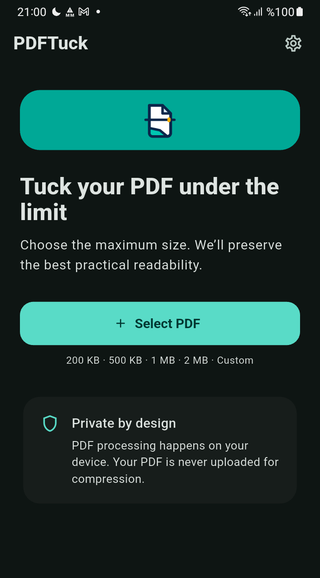
First, pick the PDF.
Tap Select PDF. Android’s own file picker opens, so PDFTuck only sees the file you choose.
-
Then type the limit.
Tap 200 KB, 500 KB, 1 MB, 2 MB, 5 MB or 10 MB, or enter your own number in KB or MB. Or skip the limit and pick High quality, Balanced or Smallest file.
-
PDFTuck tries, measures and keeps the best fit.
It tests up to seven quality settings, measures the real size of each file it produces, and keeps the best-looking one that is under your limit.
-
Finally, check it and save.
See the old and new size, preview the pages with zoom, then save it where you want, share it, or open it in your PDF viewer.
The details, including what happens when a limit can’t be met →
What you see when it’s done
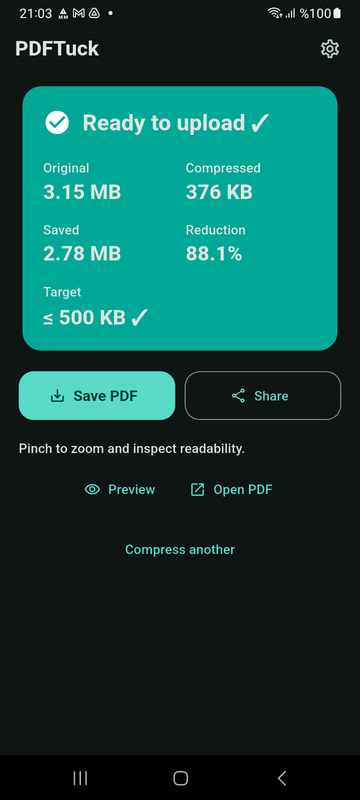
Before and after
The original size, the new size, how much was saved and the reduction in percent.
The target, checked
A tick only when the measured file is at or under your limit.
Save where you want
Android’s “Save as” dialog with a name like report_500KB.pdf.
Share or open
Send it straight to email or a messenger, or open it in another PDF app.
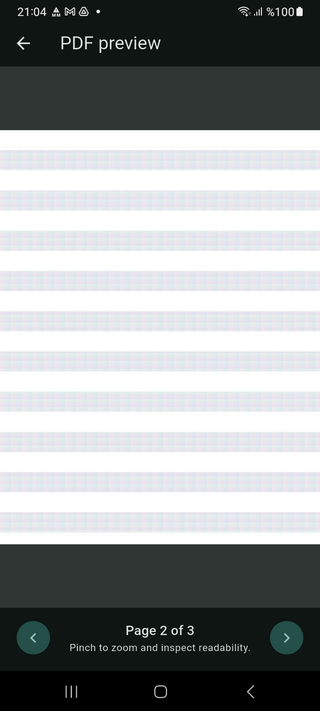
Preview first
Look at each page and pinch to zoom before you upload anything.
Your original stays
PDFTuck writes a new file. The PDF you picked is never changed.
What a target size means
A target is a ceiling, not a promise. PDFTuck aims for the best-looking file that is still under it.
Measured, not estimated. PDFTuck checks the actual file it made. “Ready to upload” appears only when that file is at or under your limit.
When the limit is out of reach. If a limit can’t be met while keeping pages readable, the app says “Best readable result”, shows how close it got, and lets you use that file or try stronger compression.
KB here means 1,000 bytes. Some portals count 1 KB as 1,024 bytes. Typing the portal’s number into PDFTuck is safe either way, because PDFTuck’s KB is the smaller one.
What decides the result. Scans and photos usually shrink a lot. Text-only PDFs are often small already and may hardly change. Fonts, existing compression and page count all play a part.
What changes in the compressed copy
- Your original PDF
- Never changed
- Images and scanned pages
- Smaller, may look softer
- Searchable, copyable text
- May not be kept
- Links and form fields
- May not be kept
- Digital signatures
- Not valid in the copy
- Password-protected PDFs
- Not supported
Depending on the document, PDFTuck may turn pages into images to reach a small limit. That is why the preview is there: check it before you submit anything important.
Where your PDF goes
Three different things are easy to mix up, so here they are separately.
Your PDF
Compressed on your phone. It is not uploaded to PDFTuck or to any compression server, and compressing, previewing and saving work without an internet connection. Working copies sit in the app’s private storage and are deleted automatically.
Ads in the app
PDFTuck is free and shows Google ads: a banner on the start screen and, now and then, a full-screen ad when you start another file, never during compression. Google’s ad and consent services use the internet and collect ad data such as device identifiers. PDFTuck does not pass them your PDF, its name, your target or the result.
This website
Uses Cloudflare Web Analytics, which counts visits without cookies. There is no upload form on this site, and none of your files ever come here.
How it compares
The big PDF suites do far more than compress, on every platform. PDFTuck does one job on Android, with a typed limit and no upload.
| Tool | Can you type a target size? | Where is the PDF processed? | Free use | Source |
|---|---|---|---|---|
| PDFTuck | Yes, in KB or MB | On the phone | Free with ads; no account | Product facts |
| Smallpdf | No (says so in its own guide) | Smallpdf servers; deleted after 1 hour | Daily limits; stronger levels are paid | smallpdf.com |
| iLovePDF | Not verified | Web: its servers, deleted within 2 hours | Free tier with limits | ilovepdf.com |
| Adobe Acrobat | Not verified | Online tool: Adobe servers | Compression in the Android app needs a subscription | helpx.adobe.com |
| PDF24 | Not verified | Web: servers in Germany; Windows app works offline | Free, ad-funded; no official Android app found | tools.pdf24.org |
When people reach for it
- A job portal rejects your CV and certificates Use case →
- A phone scan came out at 8 MB Use case →
- A form needs the PDF under 100 or 200 KB Guide →
- The limit is 1 MB and the file is 3 MB Guide →
- The document is private and shouldn’t go to a website Guide →
- “File too large” and you don’t know why Guide →
Questions
Is PDFTuck free?
Yes. It is free and shows ads. There are no in-app purchases, no subscription and no account.
Where can I get it?
PDFTuck is in closed testing and is not yet publicly listed on Google Play. You can email us to ask about joining the test. This page will link to Google Play once the app is public.
Will it always reach my target?
No tool can promise that for every PDF. PDFTuck reports success only when the measured file is at or under your limit. When it can’t get there while keeping pages readable, it says “Best readable result” and lets you use that file or try stronger compression.
Is my PDF uploaded anywhere?
No. The PDF is compressed on your phone. It is not sent to PDFTuck or to any compression server.
Does it work offline?
Yes. Selecting, compressing, previewing and saving a PDF work without a connection. Ads and consent messages need one.
Can I compress a password-protected PDF?
Not if it needs a password to open. Remove the password first with a tool you trust, then compress the copy.
Get under the limit.
One app, one job: a PDF that fits. Free, on your Android phone, no account.
PDFTuck is in closed testing and is not yet publicly listed on Google Play.
Email to join the test